
Overview
A Powershell script configured as an SCCM/MEM Configuration Baseline to collect the IMEI identifier from Windows devices with a mobile network adaptor installed.
Enterprise mobile service providers often provide usage reports with the IMEI number of the network adaptor it’s attached to, so this is useful if you need to understand where your SIMs are being used.
We’re using the same principles I followed in one of my previous posts to achieve this. Monitor Active Applications | WMI | SCCM/MEM – JW Blog
Breakdown
This breakdown assumes you’re familiar with SCCM/MEM and it’s features, including how Configuration Baselines and Hardware Inventory works.
- Create a Configuration Baseline with the following Discovery and Remediation Scripts below. Compliance should be configured as {Compliant}.
- Deploy and run the baseline on a test device.
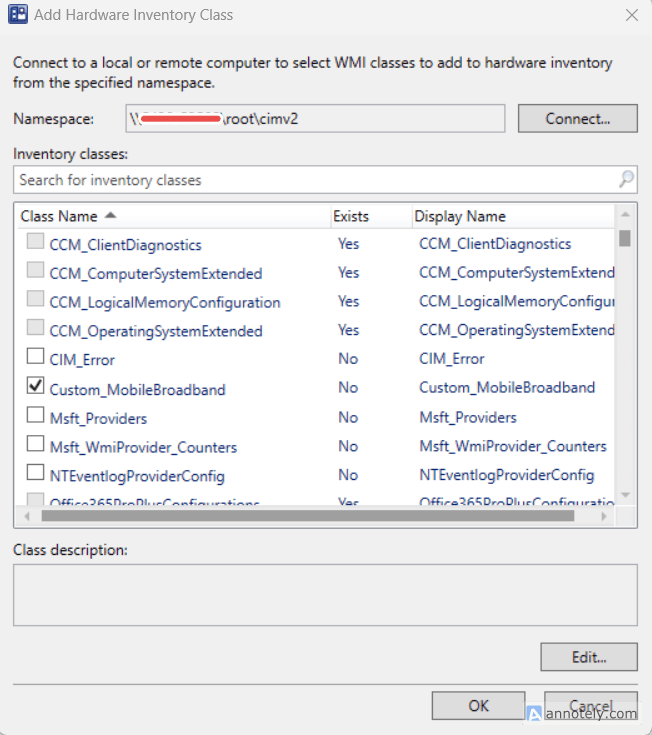
- Navigate to you SCCM Client Settings > Hardware Inventory > then add the New Inventory Class which should now appears when scanning against your test machine. In the screenshot below, I’ve ticked the new class named {Custom_MobileBroadband}.
- Deploy the Baseline to all required computers using an appropriate Device Collection.
- You can report on this data via SQL or WQL. Here’s an example WQL query you could use:
WQL Query
This file contains hidden or bidirectional Unicode text that may be interpreted or compiled differently than what appears below. To review, open the file in an editor that reveals hidden Unicode characters.
Learn more about bidirectional Unicode characters
| # SCCM Site details | |
| $SiteServer = "siteserver" # Replace with your SCCM server name | |
| $SiteCode = "ABC" # Replace with your SCCM site code | |
| $OutputFile = "C:\MobileBroadbandReport.csv" # Output CSV path | |
| # Query all computers | |
| $Computers = Get-CimInstance -Computername $SiteServer -Namespace "root\SMS\site_$SiteCode" -ClassName SMS_R_System | |
| # Query custom mobile broadband class | |
| $MobileData = Get-CimInstance -Computername $SiteServer -Namespace "root\SMS\site_$SiteCode" -ClassName SMS_G_System_CUSTOM_MOBILEBROADBAND | |
| # Build a hash table for fast lookup | |
| $MobileHash = @{} | |
| foreach ($mb in $MobileData) { | |
| $MobileHash[$mb.ResourceID] = $mb | |
| } | |
| # Combine data efficiently | |
| $Results = foreach ($comp in $Computers) { | |
| if ($MobileHash.ContainsKey($comp.ResourceID)) { | |
| $mb = $MobileHash[$comp.ResourceID] | |
| [PSCustomObject]@{ | |
| Name = $comp.Name | |
| IMEI = $mb.IMEI | |
| LastSeen = $mb.LastSeen | |
| } | |
| } | |
| } | |
| # Export to CSV | |
| $Results | Export-Csv -Path $OutputFile -NoTypeInformation | |
| Write-Host "Report exported to $OutputFile" |
Discovery Script
This file contains hidden or bidirectional Unicode text that may be interpreted or compiled differently than what appears below. To review, open the file in an editor that reveals hidden Unicode characters.
Learn more about bidirectional Unicode characters
| #Policy Custom MobileBroadband IMEI Discovery | |
| #Returns Compliant/NonCompliant for ConfigMgr Configuration Baseline | |
| $Class = "Custom_MobileBroadband" | |
| $Namespace = "root\cimv2" | |
| try { | |
| # Check if the WMI class exists | |
| if (Get-CimClass -ClassName $Class -Namespace $Namespace -ErrorAction SilentlyContinue) { | |
| # Get the WMI instance | |
| $Entry = Get-CimInstance -Namespace $Namespace -ClassName $Class -ErrorAction SilentlyContinue | |
| if ($Entry -and $Entry.IMEI) { | |
| # IMEI exists → Compliant | |
| Write-Output "Compliant" | |
| } else { | |
| # Class exists but no IMEI → NonCompliant | |
| Write-Output "NonCompliant" | |
| } | |
| } else { | |
| # Class missing → NonCompliant | |
| Write-Output "NonCompliant" | |
| } | |
| } | |
| catch { | |
| # Any errors → NonCompliant | |
| Write-Output "NonCompliant" | |
| } |
Remediation Script
This file contains hidden or bidirectional Unicode text that may be interpreted or compiled differently than what appears below. To review, open the file in an editor that reveals hidden Unicode characters.
Learn more about bidirectional Unicode characters
| #Policy Custom MobileBroadband IMEI Remediation | |
| #Stores the Mobile Broadband IMEI in a custom WMI class for SCCM Hardware Inventory | |
| #Contact | joshua.woods@jwblog.uk | |
| #—————————– | |
| # Variables | |
| #—————————– | |
| $Version = "1.0" | |
| $Date = Get-Date -Format "dd-MM-yyyy" | |
| $WMIDate = Get-Date | |
| $Class = "Custom_MobileBroadband" | |
| $Namespace = "root\cimv2" | |
| $LogPath = "C:\Windows\Logs\Policy_${Class}_Remediation_$Version.txt" | |
| $RegPath = "HKLM:\Software\Software Distribution" | |
| $RegVerKey = "Policy_${Class}" | |
| $RegDateKey= "Policy_${Class}_Date" | |
| #—————————– | |
| # Get IMEI | |
| #—————————– | |
| $IMEI = netsh mbn sh interface | Select-String "Device Id" | ForEach-Object { | |
| ($_ -split ':')[1].Trim() | |
| } | |
| if (-not $IMEI) { | |
| Write-Host "No IMEI found. Exiting." | |
| exit | |
| } | |
| try { | |
| # Start log transcript | |
| Start-Transcript -Path $LogPath -Append | |
| # Write last run date to registry | |
| New-ItemProperty -Path $RegPath -Name $RegDateKey -Value $Date -Force | Out-Null | |
| # Check version in registry | |
| $TestReg = $null | |
| try { | |
| $TestReg = (Get-ItemProperty $RegPath -Name $RegVerKey -ErrorAction SilentlyContinue).$RegVerKey | |
| } catch {} | |
| if ($TestReg -eq $Version) { | |
| Write-Output "Client version matches last run value | $Version" | |
| } else { | |
| Write-Output "Client version does not match last run value. Updating to version | $Version" | |
| # Remove existing class if version mismatch | |
| try { | |
| [System.Management.ManagementClass]::new($Class).Delete() | |
| Write-Output "Deleted old WMI class $Class" | |
| } catch { | |
| Write-Output "No existing class $Class to delete" | |
| } | |
| # Update registry version value | |
| New-ItemProperty -Path $RegPath -Name $RegVerKey -Value $Version -Force | Out-Null | |
| } | |
| #—————————– | |
| # Create WMI Class if missing | |
| #—————————– | |
| if (-not (Get-CimClass -ClassName $Class -Namespace $Namespace -ErrorAction SilentlyContinue)) { | |
| Write-Output "Creating WMI class $Class…" | |
| $newClass = New-Object System.Management.ManagementClass($Namespace, [String]::Empty, $null) | |
| $newClass["__CLASS"] = $Class | |
| $newClass.Qualifiers.Add("Static", $true) | |
| # IMEI (Key) | |
| $newClass.Properties.Add("IMEI", [System.Management.CimType]::String, $false) | |
| $newClass.Properties["IMEI"].Qualifiers.Add("key", $true) | |
| # LastSeen | |
| $newClass.Properties.Add("LastSeen", [System.Management.CimType]::DateTime, $false) | |
| # Commit class | |
| $newClass.Put() | Out-Null | |
| } else { | |
| Write-Output "WMI class $Class already exists" | |
| } | |
| #—————————– | |
| # Update WMI data | |
| #—————————– | |
| # Remove any old entries | |
| Get-CimInstance -Namespace $Namespace -ClassName $Class -ErrorAction SilentlyContinue | Remove-CimInstance | |
| # Insert new IMEI | |
| New-CimInstance -Namespace $Namespace -ClassName $Class -Property @{ | |
| IMEI = $IMEI | |
| LastSeen = $WMIDate | |
| } | Out-Null | |
| Write-Output "Stored IMEI $IMEI in WMI class $Class" | |
| # Stop log transcript | |
| Stop-Transcript | |
| } | |
| catch { | |
| Write-Output "Error: $($_.Exception.Message)" | |
| Stop-Transcript | |
| } |
 JW Blog