
References
Configuration options for the Office Deployment Tool – Deploy Office | Microsoft Learn
Office Customization Tool – Microsoft 365 Apps admin center
Application Packaging | Installer Template – JW Blog
Introduction
This short guide intends to highlight the steps required in deploying Microsoft 365 Apps to your Windows Endpoints via SCCM/MECM in 2024. I will be referencing Microsoft documentation in addition to my custom Powershell installer template to create a more robust deployment.
I won’t be delving into the details, so if you’re not already somewhat familiar with SCCM/MECM and the Office Deployment Tool, I’d recommend checking the references below first. I’m also using rigid methodologies. There’s more than one way to achieve this goal, so a different method may work better in your environment. Keep that in mind.
Overview of the Office Deployment Tool – Deploy Office | Microsoft Learn
What is Configuration Manager? – Configuration Manager | Microsoft Learn
Generate Your Install/Uninstall XML
Use the Office Customization Tool here to generate your Office 365 Apps installer XML according to your requirements. Here you can select which products and configuration you need. The output will be an XML that you’ll reference against your installer.

Export the configuration.xml file and place it in a folder.
Download the Office Deployment Tool from here. You’ll be prompted to extract the files to a location of your choice. Copy the setup.exe file into the same folder as your configuration.xml.
Now you’ll need to create an xml file to remove Office 365 Apps if you’d like the option to uninstall as part of your deployment. Open notepad and save the following text as “Remove.xml”:
| <Configuration> | |
| <Remove All="TRUE"/> | |
| <Display Level="None" AcceptEULA="TRUE"/> | |
| <Property Name="AUTOACTIVATE" Value="0"/> | |
| <Property Name="FORCEAPPSHUTDOWN" Value="TRUE"/> | |
| <Property Name="SharedComputerLicensing" Value="0"/> | |
| <Property Name="PinIconsToTaskbar" Value="FALSE"/> | |
| </Configuration> |
So far, you should have this:

Create your SCCM/MECM Application
Next, we’ll start building what we need to create an SCCM/MECM application deployment.
In our existing folder, we’ll need the following 3 PowerShell scripts. Again, open notepad and save the following text with the associated names (in bold):
install.ps1
| #ApplicationPackaging_PackageInstallerTemplate | |
| #Version | 1.2 | |
| #Contact | Josh Woods | joshua@jwblog.uk | |
| #References | |
| #https://techgenix.com/how-to-uninstall-software-using-powershell/ | |
| ################### | |
| #Variables | |
| ################### | |
| #Configuration | |
| $PackageName = "Microsoft_Office365_2024_32_64W10_CMD_R01" | |
| $SoftwareDetectionPath = "HKLM:\SOFTWARE\Software Distribution" | |
| ################### | |
| #Variables End | |
| ################### | |
| #Stop Install on Error and output to log | |
| try { | |
| #Log | |
| #Start Log Transcript | |
| Start-Transcript -Path "C:\Windows\Logs\$PackageName.txt" -append | |
| ######################################################################################################################################################################################################################################## | |
| #This section will Install the App and set the detection registry entry | |
| ######################################################################################################################################################################################################################################## | |
| #Install | |
| Start-Process -FilePath "$PSScriptRoot\setup.exe" -ArgumentList "/configure", "$PSScriptRoot\configuration.xml" -Wait -NoNewWindow | |
| #SCCM Detection Registry Entry | |
| Get-Item -Path "$SoftwareDetectionPath" | Out-Null | |
| if ($?) { | |
| #Do nothing. Registry path already exists | |
| } | |
| else { | |
| New-Item -Path "$SoftwareDetectionPath" | |
| } | |
| #Set Install Confirmation Registry Key | |
| # Check if the registry key exists | |
| if (-not (Test-Path $SoftwareDetectionPath)) { | |
| # Create the registry key if it doesn't exist | |
| New-Item -Path $SoftwareDetectionPath -Force | Out-Null | |
| Write-Host "Registry key created: $SoftwareDetectionPath" | |
| } else { | |
| Write-Host "Registry key already exists: $SoftwareDetectionPath" | |
| } | |
| New-ItemProperty -Path "$SoftwareDetectionPath" -Name "$PackageName" -PropertyType "String" -Value "Installed on $(Get-Date)" -Force | |
| Start-Sleep -s 10 | |
| #Output Logs to File | |
| Stop-Transcript | |
| } | |
| catch { | |
| #Failed. Write error and exit. | |
| Write-Output "Error: $($_.Exception.Message)" | |
| #Output Logs to File | |
| Stop-Transcript | |
| } | |
repair.ps1
| #ApplicationPackaging_PackageInstallerTemplate | |
| #Version | 1.2 | |
| #Contact | Josh Woods | joshua@jwblog.uk | |
| #References | |
| #https://techgenix.com/how-to-uninstall-software-using-powershell/ | |
| ################### | |
| #Variables | |
| ################### | |
| #Configuration | |
| $PackageName = "Microsoft_Office365_2024_32_64W10_CMD_R01" | |
| $SoftwareDetectionPath = "HKLM:\SOFTWARE\Software Distribution" | |
| ################### | |
| #Variables End | |
| ################### | |
| #Stop Install on Error and output to log | |
| try { | |
| #Log | |
| #Start Log Transcript | |
| Start-Transcript -Path "C:\Windows\Logs\$PackageName.txt" -append | |
| ######################################################################################################################################################################################################################################## | |
| #This section will Install the App and set the detection registry entry | |
| ######################################################################################################################################################################################################################################## | |
| #Install | |
| Start-Process -FilePath "$PSScriptRoot\setup.exe" -ArgumentList "/configure", "$PSScriptRoot\remove.xml" -Wait -NoNewWindow | |
| Start-Process -FilePath "$PSScriptRoot\setup.exe" -ArgumentList "/configure", "$PSScriptRoot\configuration.xml" -Wait -NoNewWindow | |
| #SCCM Detection Registry Entry | |
| Get-Item -Path "$SoftwareDetectionPath" | Out-Null | |
| if ($?) { | |
| #Do nothing. Registry path already exists | |
| } | |
| else { | |
| New-Item -Path "$SoftwareDetectionPath" | |
| } | |
| #Set Install Confirmation Registry Key | |
| # Check if the registry key exists | |
| if (-not (Test-Path $SoftwareDetectionPath)) { | |
| # Create the registry key if it doesn't exist | |
| New-Item -Path $SoftwareDetectionPath -Force | Out-Null | |
| Write-Host "Registry key created: $SoftwareDetectionPath" | |
| } else { | |
| Write-Host "Registry key already exists: $SoftwareDetectionPath" | |
| } | |
| New-ItemProperty -Path "$SoftwareDetectionPath" -Name "$PackageName" -PropertyType "String" -Value "Installed on $(Get-Date)" -Force | |
| Start-Sleep -s 10 | |
| #Output Logs to File | |
| Stop-Transcript | |
| } | |
| catch { | |
| #Failed. Write error and exit. | |
| Write-Output "Error: $($_.Exception.Message)" | |
| #Output Logs to File | |
| Stop-Transcript | |
| } | |
uninstall.ps1
| #ApplicationPackaging_PackageInstallerTemplate | |
| #Version | 1.2 | |
| #Contact | Josh Woods | joshua@jwblog.uk | |
| #References | |
| #https://techgenix.com/how-to-uninstall-software-using-powershell/ | |
| ################### | |
| #Variables | |
| ################### | |
| #Configuration | |
| $PackageName = "Microsoft_Office365_2024_32_64W10_CMD_R01" | |
| $SoftwareDetectionPath = "HKLM:\SOFTWARE\Software Distribution" | |
| ################### | |
| #Variables End | |
| ################### | |
| #Stop Install on Error and output to log | |
| try { | |
| #Log | |
| #Start Log Transcript | |
| Start-Transcript -Path "C:\Windows\Logs\$PackageName.txt" -append | |
| ######################################################################################################################################################################################################################################## | |
| #This section will Uninstall the App and set the detection registry entry | |
| ######################################################################################################################################################################################################################################## | |
| #Uninstall | |
| Start-Process -FilePath "$PSScriptRoot\setup.exe" -ArgumentList "/configure", "$PSScriptRoot\remove.xml" -Wait -NoNewWindow | |
| #SCCM Detection Registry Entry | |
| Get-Item -Path "$SoftwareDetectionPath" | Out-Null | |
| if ($?) { | |
| #Do nothing. Registry path already exists | |
| } | |
| else { | |
| New-Item -Path "$SoftwareDetectionPath" | |
| } | |
| #Set Remove Confirmation Registry Key | |
| Remove-ItemProperty -Path "$SoftwareDetectionPath" -Name "$PackageName" -ErrorAction SilentlyContinue | |
| Start-Sleep -s 10 | |
| #Output Logs to File | |
| Stop-Transcript | |
| } | |
| catch { | |
| #Failed. Write error and exit. | |
| Write-Output "Error: $($_.Exception.Message)" | |
| #Output Logs to File | |
| Stop-Transcript | |
| } | |
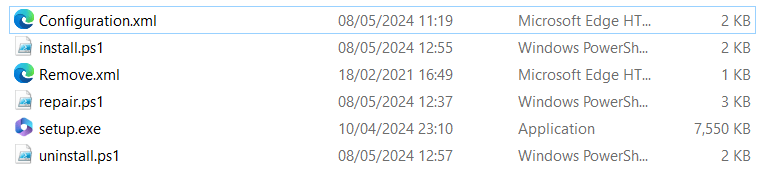
Your final structure should look like this:
Create a new Application in SCCM/MECM and use the associated scripts for each function. This guide presumes that you understand how to create applications using the Application Model. If not, get started here.
See the following deployment type. We’re using our install.ps1, repair.ps1 and uninstall.ps1 files accordingly:

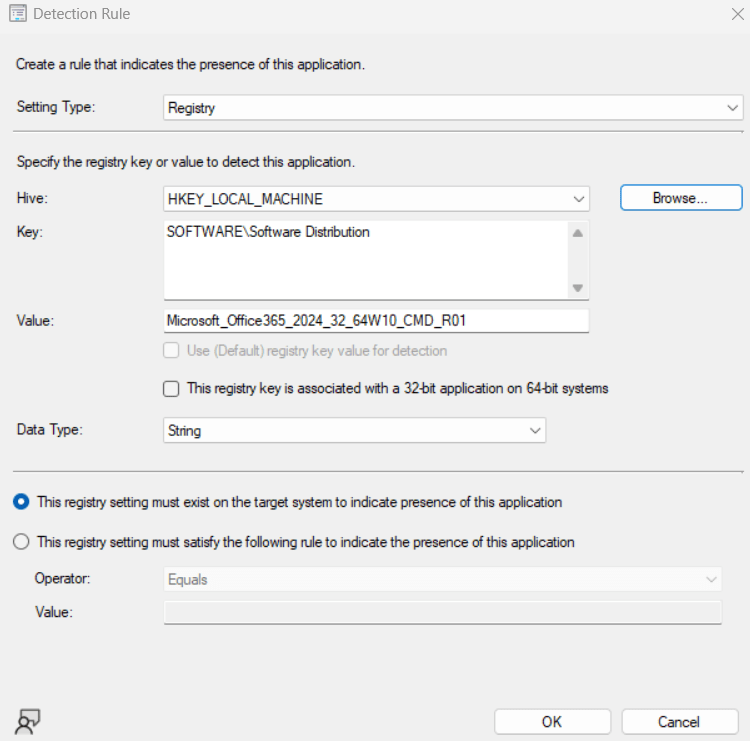
If a client has successfully installed Microsoft 365 Apps, the install script creates a registry value that you can use as a detection method. The value is made up of the $PackageName and $SoftwareDetectionPath variables listed towards the beginning of the script. The following detection method should be set.
You can now deploy the app to a collection of your choice.
If you have any questions, drop a comment below.
 JW Blog