
Background
As part of some work to deploy an application to a number of Windows 10/11 devices, I needed a way to update the content of a config file stored in the apps file directory. A method I could have adopted might be to update the content of the original file, and deploy this via Configuration Manager or Intune.
However, I thought it’d be useful to configure something I could use again in the future, so here’s what I’ve done:
Overview
A configurable Powershell script to update the contents of a specified file using a defined set of parameters. In this example, I’ve set it up as an SCCM/MECM Run Script to be deployed to one or more machines.
The parameters include:
FilePath
Path to the file you need to amend. For example “C:\Windows\win.ini”
TextToReplace
The string you’re looking to amend.
TextToReplaceWith
The string you’re looking to amend with.
ReplaceAllTextInstances
Boolean value to specify if you want all instances of the text replacing. $True or $False.
TextToReplaceAtLines
If the above value is set to $False, you can specify here which lines you’d like to replace the text on. Separate the entries with a comma. For example to amend the value from lines 5 and 6, type 5,6.
BackupOldFile
Boolean value to specify if you’d like to backup the old file before amending. The backup file will include the suffix _backup.
SCCM/MECM Run Script Example
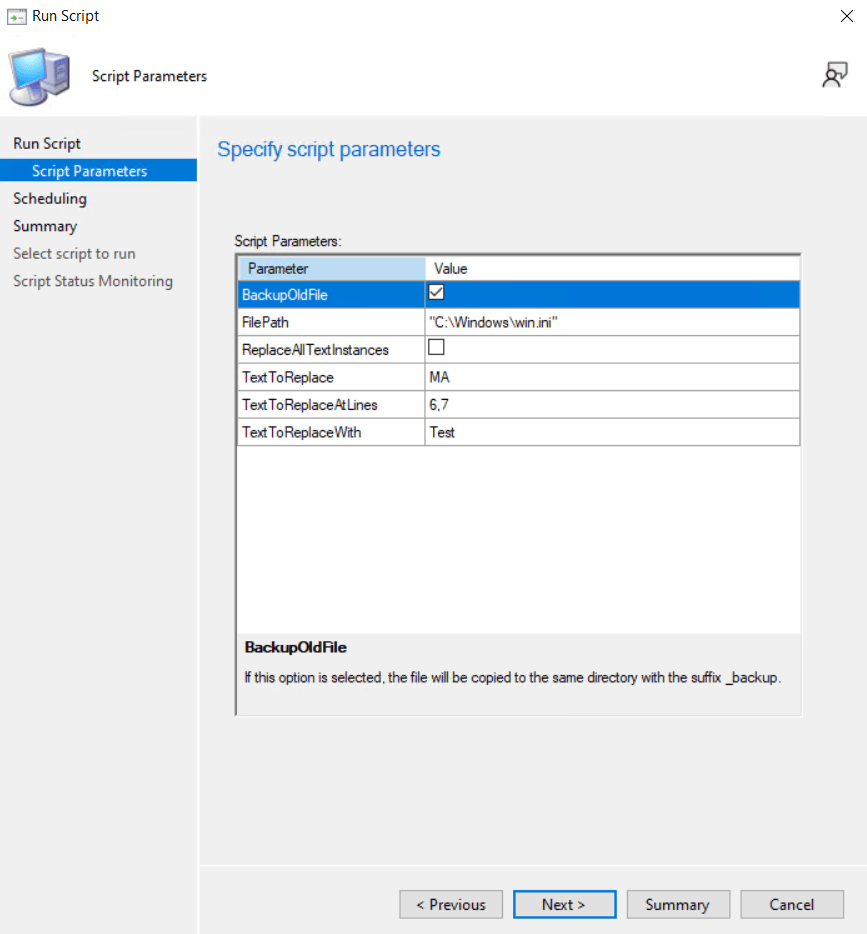
Script
| #File_TextReplace | |
| #Searches and replaces text in various text based files including .txt .ini | |
| #Designed to be deployed as an SCCM/MECM Run Script | |
| #Contact | Josh Woods | joshua@jwblog.uk | |
| #Note – When replacing all text instances, ensure that the text you set to replace has the result you're expecting. You may want to consider replacing the entire content of the line, rather than a word or a short set of characters. | |
| ###Variables### | |
| Param( | |
| [Parameter(Mandatory=$True)] | |
| [string]$FilePath, | |
| [Parameter(Mandatory=$True)] | |
| [string]$TextToReplace, | |
| [Parameter(Mandatory=$True)] | |
| [string]$TextToReplaceWith, | |
| [Parameter(Mandatory=$True)] | |
| [bool]$ReplaceAllTextInstances, | |
| [Parameter(Mandatory=$True)] | |
| [string]$TextToReplaceAtLines, | |
| [Parameter(Mandatory=$True)] | |
| [bool]$BackupOldFile | |
| ) | |
| #Example values | |
| #$FilePath = "C:\Windows\win.ini" | |
| #$TextToReplace = "MA" | |
| #$TextToReplaceWith = "Test" | |
| #$ReplaceAllTextInstances = $False | |
| #$TextToReplaceAtLines = 6,7 #Enter Line Numbers to Apply the Change to Here (This does not apply if $ReplaceAllTextInstances is set to $True) | |
| #$BackupOldFile = $true | |
| #Convert the $TextToReplaceAtLines to an array of integers | |
| $TextToReplaceAtLinesFormatted = $TextToReplaceAtLines -split ',' | ForEach-Object { [int]$_ } | |
| #Get content of the file and set to variable | |
| $Content = Get-Content $FilePath | |
| #Backup Existing File | |
| if ($BackupOldFile -eq $true) { | |
| #Update the file name | |
| #Get the file name without extension | |
| $fileNameWithoutExtension = [System.IO.Path]::GetFileNameWithoutExtension($FilePath) | |
| #Get the file extension | |
| $fileExtension = [System.IO.Path]::GetExtension($FilePath) | |
| #Add a suffix before the file extension | |
| $newFileName = "${fileNameWithoutExtension}_backup$fileExtension" | |
| #Build the new file path | |
| $newFilePath = [System.IO.Path]::Combine((Get-Item $FilePath).DirectoryName, $newFileName) | |
| #Copy updated file name | |
| Copy-Item -path "$FilePath" -Destination "$newFilePath" -Force | |
| } | |
| #Replace All Text Instances | If $ReplaceAllTextInstances is set to $true, content will be replaced where applicable. | |
| if ($ReplaceAllTextInstances -eq $true) { | |
| #Replace Content | |
| $Result = $Content.Replace("$TextToReplace","$TextToReplaceWith") | |
| #Output to File | |
| $Result | Out-File "$FilePath" -Force | |
| } | |
| #Replace Selected Text Instances | If $ReplaceAllTextInstances is set to $false and $TextToReplaceAtLines has line numbers specified, this portion of the script will iterate through the defined lines and replace content where applicable. | |
| if ($ReplaceAllTextInstances -eq $false) { | |
| #Change Content at each specified line | The $Line variable will contain an individual line from the file. The foreach loop iterates through each line and updates the value if required. | |
| foreach ($Line in $Content) { | |
| $WorkingLine = $WorkingLine + 1 | |
| if ($TextToReplaceAtLinesFormatted -contains $WorkingLine) { | |
| $Line = $Line.Replace("$TextToReplace","$TextToReplaceWith") | |
| $Result = @($Result; $Line) | |
| } | |
| else { | |
| $Result = @($Result; $Line) | |
| } | |
| } | |
| #Output to File | |
| $Result | Out-File "$FilePath" -Force | |
| } | |
| Write-Output "$FilePath | $TextToReplace | $TextToReplaceWith | $ReplaceAllTextInstances | $TextToReplaceAtLines | $BackupOldFile" |
Credit to ChatGPT
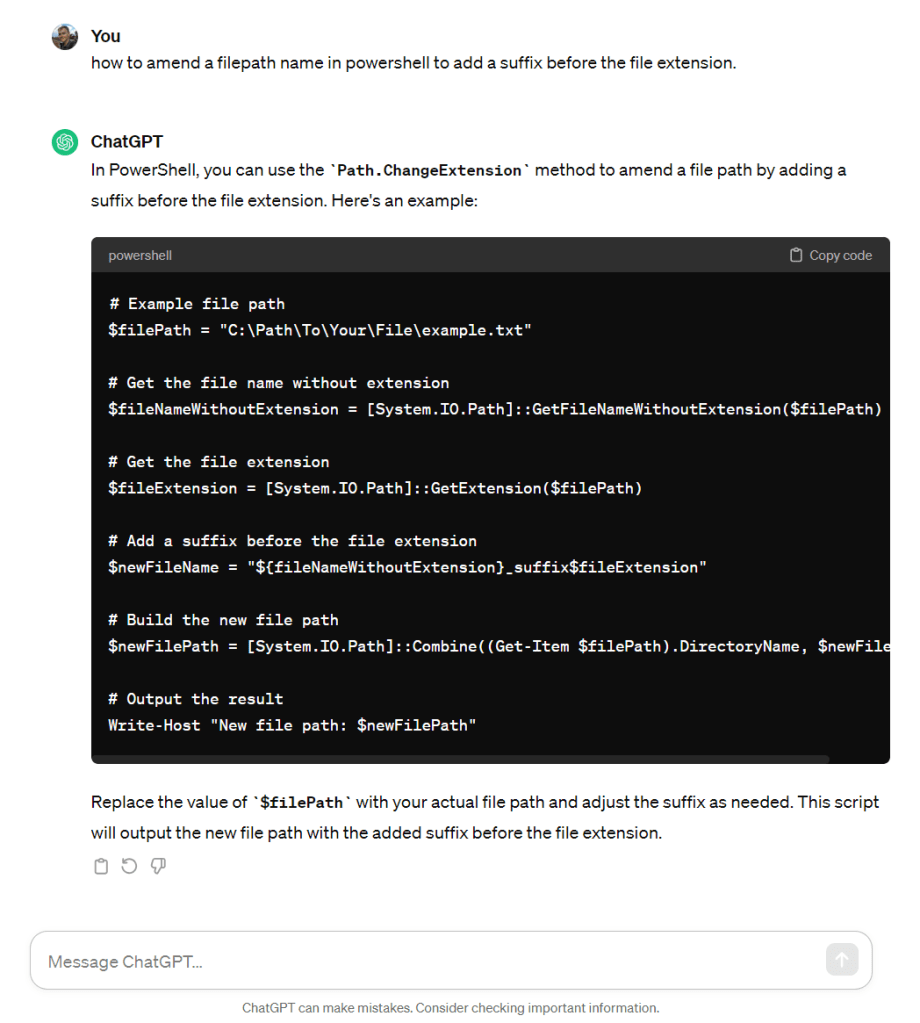
Some of this script was created with the help of ChatGPT. I wasn’t sure how to approach the original file backup. I needed a way to add a suffix to the file name just before the file extension. When I prompted ChatGPT, it returned a .Net class I could use to achieve this. I used the principles returned here to create the backup portion of this script.
 JW Blog