
References
Deploy software updates – Configuration Manager | Microsoft Learn
Create an OS upgrade task sequence – Configuration Manager | Microsoft Learn
Administrative Policies
Introduction
Towards the end of Part 2, we briefly mentioned any Administrative Policies defined in Group Policy or Microsoft Endpoint Manager that may prevent your test environment from working as expected. Throughout this section, we’re aiming to finalise our solution with the intention to move onto part 4, where we’ll introduce testing with production endpoints. To get to this stage, we need a firm solution in place; so to kick us off I’ll start by repeating the items relating to policy, as well as offering more detail on what to look out for.
Group Policy
You may decide to stick to your existing OU structure and policies for your Windows 11 clients. If this works in your environment, skip to the next subheading. However, if you’ve determined that your existing Group Policy Settings for Windows 10 need modifying for Windows 11, then consider creating a new OU outside of your existing structure.
Note: To prevent overlapping policies, create your Windows 11 OU at the same or parent level to your Windows 10 device OU’s. Alternatively, disable Group Policy Inheritance from your Windows 11 OU.
Microsoft Endpoint Manager
Consider areas where you set configuration via Microsoft Endpoint Manager. Will these settings support and target Windows 11?
- If you set Configuration Baselines in your environment, are these enabled for Windows 11?

Desktops, Laptops and Tablets (Thick Clients)
Introduction
The recommended upgrade path from Windows 7, 8 and 8.1 to Windows 10 is by using an In-Place Upgrade Task Sequence. Based on my research so far, Microsoft don’t offer highly specific guidelines on the most suitable upgrade path to Windows 11. Without going into too much detail, it appears that Windows 10 and Windows 11 share much of the same core components, so you wouldn’t expect the same kernel and driver compatibility issues as referenced in the Microsoft Compatibility Cookbook for Windows 7 devices.
With this in mind, we’re going to consider two options:
- A Feature Upgrade deployed from a Software Update Point (Recommended)
- An In-Place Upgrade Task Sequence
Feature Upgrade
Deploying a Feature Upgrade from Microsoft Endpoint Managers Software Update Point is the simplest method to upgrade from Windows 10 to Windows 11.
- Navigate to Administration > Sites > Configure Site Components > Software Update Point
- Select the Classifications tab. Ensure Upgrades is selected as seen from the image below:

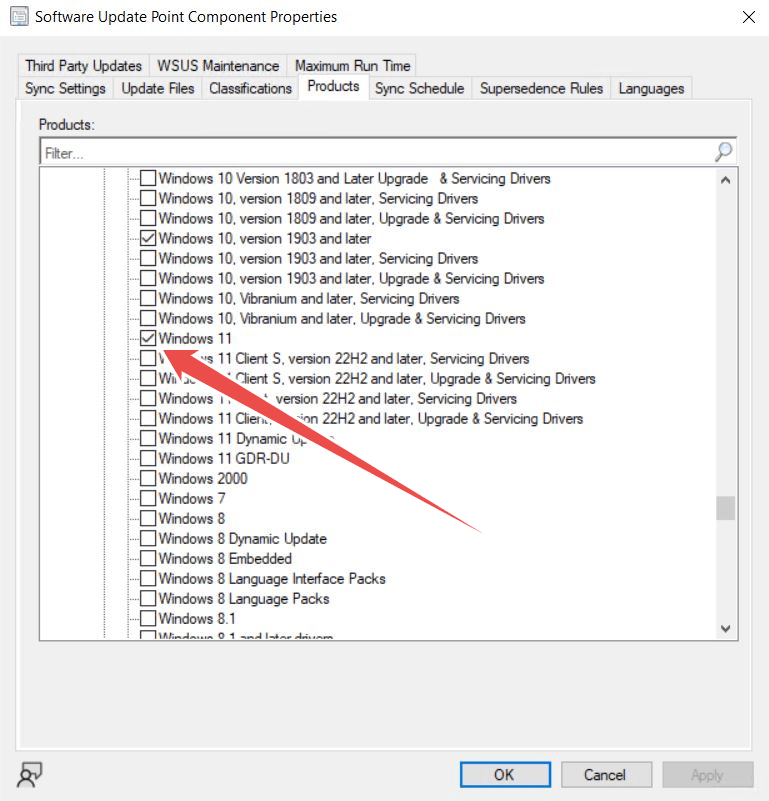
- Select the Products tab and Select Windows 11 as seen from the image below:
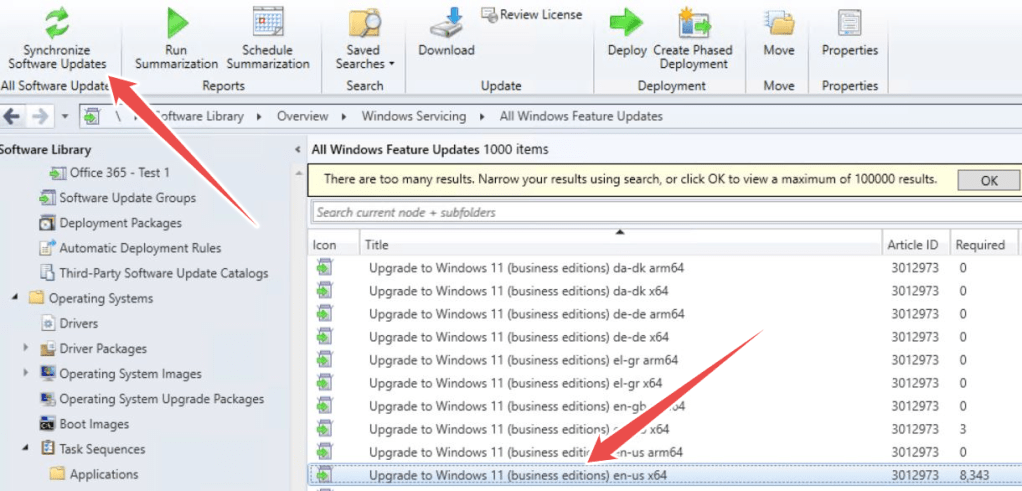
- Navigate to Software Library > Windows Servicing > All Windows Feature Updates
- Click Synchronise Software Updates (As illustrated) to sync new feature updates. This may take a few minutes to complete.
- As soon as that’s done, you should see the upgrade entry in the console.
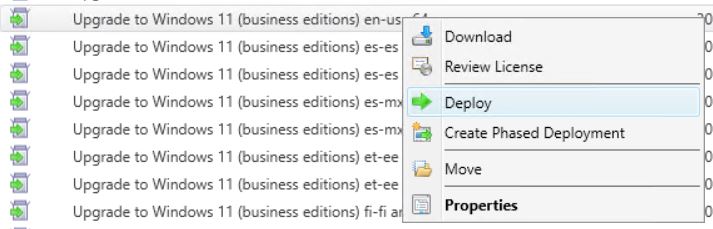
- Right click the appropriate Upgrade to Windows 11 and select Deploy to your appropriate Collection/s. You’ll need to consider how you aim to test the deployment before configuring it for production. See Part 4 of this series for testing recommendations.
Refer to the Microsoft Article here for more information on how to deploy Software Updates using Microsoft Endpoint Manager.
In-Place Upgrade
Another option to upgrade to Windows 11 is through an In-Place Upgrade Task Sequence. I won’t be running through a deep dive here, but this method can accommodate prerequisite checks and additional configurations directly into the upgrade task.
- Configure checks additional prerequisites such as:
- Plugged into AC power
- Minimum Free Disk Space
- Remove Incompatible Drivers
- Remove Incompatible Applications
- Configure post install optimisations including:
- Install Drivers
- Apply Start Menu customisation’s
The method you choose will be dependant on your organisations requirements, and you may decide to separate the Windows 11 upgrade and any additional configuration tasks through more than one deployment.
See the Microsoft article here for more information on how to configure an In-Place Upgrade Task Sequence.
VDI (Thin Clients)
Introduction
If your organisation doesn’t utilise VDI (Virtual Desktop Infrastructure) then this won’t apply to you. However, if you do utilise VDI, consider the following resources to assist in your migration.
Persistent VDI/Persistent Session-Based Desktops
If you use Microsoft Endpoint Manager to administer your persistent VDI machines, refer to the points made in previous paragraphs. You may decide to utilise the same processes as your physical Desktop and Laptops (Fat Clients)
Non-Persistent VDI/Non-Persistent Session-Based Desktops
Consider the following resources for different VDI platforms:
- Citrix – Reference Architecture: Image Management | Citrix Tech Zone
- VMWare Horizon – First-Gen Tenants – Introduction to Horizon Image Management Service (IMS) (vmware.com)
- AWS – Well-Architected principles for image management – Best practices to prepare your Amazon WorkSpaces for Linux images
Visual Configuration
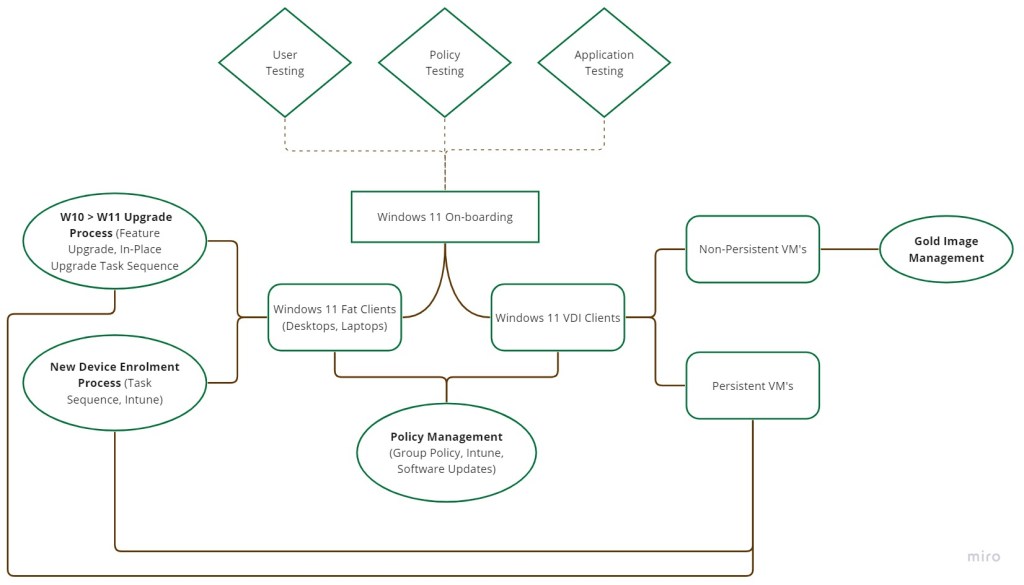
To help visualise how each task in our solution works together, see the Mind Map Visual below. I’ve identified the core components and their associated configurations.
For example, both our physical Desktops/Laptops and VDI devices require a Policy Management solution. In most cases, Group Policy or Intune will be used for both set of services.
Coming Soon | Part 4: Test…
 JW Blog