
Scenario
Our scenario assumes that our End User Compute estate uses on-premise Active Directory Infrastructure, and our clients are managed solely through Microsoft Configuration Manager and Group Policy.
This scenario does not look into the configuration required to upgrade devices in a Co-Managed or Intune Managed Environment. I aim to discuss these at a later date.
Introduction
Here, we’ll be looking at our organisations approach in creating the necessary workspace for testing the migration process. In an ideal world, this would be in the form of a dedicated lab, which is isolated from your production environment. However, these can be difficult to maintain, and even with the best intentions, will never fully replicate your real world scenario.
With that in mind, we’ll still be working to setup a live test environment for this project, and incorporate some real-world testing. I’ll outline each component, how we’ve configured them, and what they’ll be used for.
Endpoints
We’ll be using 3 dedicated endpoints to test with. Ideally, you would build these using a hypervisor. In our case, we’re using VSphere alongside the following documentation here to maintain best practice.
If you’re using a different Hypervisor platform, the same principle applies. This guide assumes that you have mature processes in place to create, maintain and retire virtual machines in your Hyper-converged infrastructure. If you don’t have such an environment in place, consider using Hyper-V on appropriate hardware. A useful benefit of virtualising our test devices is the ability to create snapshots and roll back a change when it’s time for testing.
Our 3 virtualised endpoints will be configured to test:
- A Windows 11 Task Sequence OS Deployment for New devices using Microsoft Endpoint Manager.
- A Windows 11 In-Place Upgrade Task Sequence or a Windows 11 Feature Upgrade deployed from Microsoft Endpoint Managers Software Update Point.
- Applications and their existing deployment methods.
It’s useful to consider how you aim to setup your test devices. In our example above, the first device won’t need an operating system pre-installed as we’re treating this as a new device. The 2nd device will need your organisations current Windows 10 build to test the upgrade process to Windows 11. Your 3rd device will need to have carried out the upgrade process to Windows 11 so that application testing work can be completed.
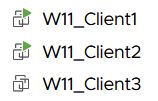
For the purpose of this example, here I have listed 3 virtual machines which are to be used as testing clients in VSphere:
Administrative Policies
Group Policy
You may decide to stick to your existing OU structure and policies for your Windows 11 clients. If this works in your environment, skip to the next subheading. However, if you’ve determined that your existing Group Policy Settings for Windows 10 need modifying for Windows 11, then consider creating a new OU outside of your existing structure.
Note: To prevent overlapping policies, create your Windows 11 OU at the same or parent level to your Windows 10 device OU’s. Alternatively, disable Group Policy Inheritance from your Windows 11 OU.

Microsoft Endpoint Manager
Consider areas where you set configuration via Microsoft Endpoint Manager. Will these settings support and target Windows 11?
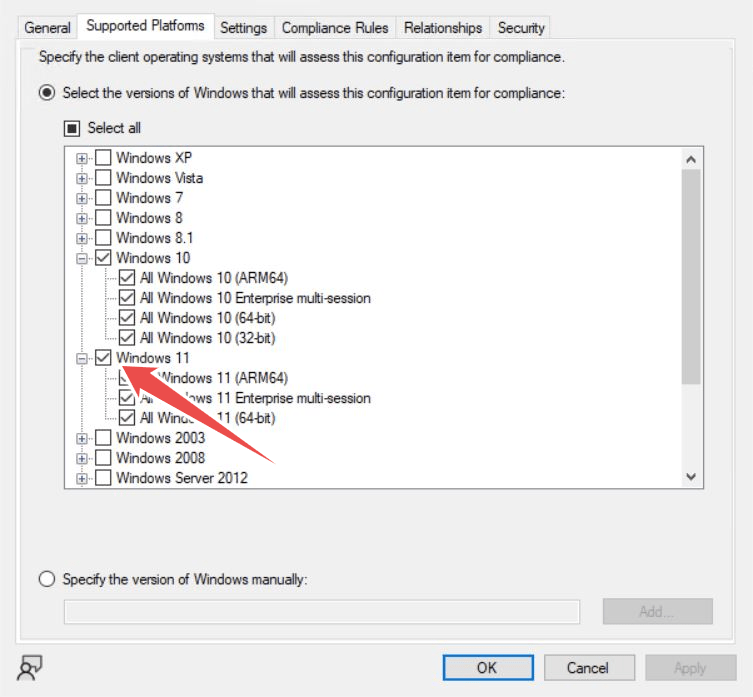
- If you set Configuration Baselines in your environment, are these enabled for Windows 11?
Now that we have our test environment, in the next part of this series, we’ll look to define our solution based on the concepts we’ve proved here.
 JW Blog